Yapay Zeka Görselden Video: Fotoğrafları Canlandırın
Yapay zeka görselden video üretimi nasıl çalışır? Veo 3.1, Omni Flash, Wan 3.0 ve Grok, $0.10'dan başlayan fiyatlar, hareket komutları, döngüler.

Yapay zeka görselden video, yapay zeka modelinin tek bir sabit resmi alıp bir klibin ilk karesi olarak kabul ettiği ve sonrasında gerçekleşen her şeyi kendi kurguladığı bir üretim tekniğidir: hareket, kamera hareketleri, ışık değişimleri ve hatta bazen ses. Tek yapmanız gereken bir fotoğraf yüklemek ve neyin hareket etmesini istediğinizi metinle tarif etmektir. Model, yüklediğiniz görselin birebir canlandığı, genellikle 4 ila 10 saniye uzunluğunda kısa bir video üretir.
Kısaca özetlemek gerekirse: BananaBanana generator sayfasına bir fotoğraf yükleyin, hareketi tarif edin ve 2–5 dakika bekleyin. Veo 3.1 Lite ile fotoğrafınızdan üretilen 4 saniyelik sessiz bir klip $0.10'dan başlar; ses eklemek bu fiyatı $0.18'a çıkarır. Gemini Omni Flash bir fotoğrafı tam bir ses kuşağıyla $0.09'dan başlayan fiyatlarla canlandırır (saniye başına faturalandırılır: 360p'de $0.03, 4K'da $0.30), Wan 3.0 ise aynısını ücretsiz sesle, 480p'de 4 saniye için $0.20'dan yapar. Yeni hesaplara hediye edilen ücretsiz $0.20 bakiye, iki adet sessiz deneme klibi üretmenizi sağlar.
Sistemimizde aktif olarak yedi video modeli çalıştırıyoruz ve hepsi ilk kare olarak fotoğraf kabul ediyor; bu yüzden kılavuz yedisini de ele alıyor ve pazarlama vaatlerine değil, başarısız denemelerimiz de dahil olmak üzere gerçek üretim loglarına dayanıyor. Zaten bazen hatalardan öğrenmek başarılardan öğrenmekten çok daha öğreticidir.
Yapay zeka görselden video üretimi nasıl çalışır?
İşin arka planında, sabit görsel modele bir yönlendirici referans kare (conditioning frame) olarak aktarılır. Google'ın Gemini API video docs dokümanlarında, Veo 3.1 modelinin "görsel tabanlı yönlendirme" (image-based direction) ve "kareye özel üretim" (frame-specific generation) özelliklerini desteklediği belirtiliyor. Yani daha sade bir dille söylersek; yüklediğiniz resim tüm klibi yönlendirir ve isterseniz tam olarak hangi karelerin nerede yer alacağını sabitleyebilirsiniz. Model sahneyi inceler, fizik kurallarını tahmin eder (fotoğraftaki suyun nasıl dalgalanacağını veya rüzgarda saçların nasıl savrulacağını hesaplar) ve başlangıç noktanızdan itibaren kare kare videoyu işlemeye başlar.
Bunun pratik sonucu şudur: Çıktının ilk karesi, neredeyse pikseli pikseline sizin fotoğrafınızdır. Sonrasındaki her şey modelin hayal gücüdür. Bu yüzden iyi komutlar (prompt), modelin zaten gördüğü şeyleri tekrar tarif etmek yerine tamamen sonradan gelişecek olaylara odaklanır.
Bu yöntem, içinde doğal bir hareket potansiyeli barındıran sahnelerde şaşırtıcı derecede iyi sonuç verir. Portredeki bir insan nefes alıp göz kırpar. Kahveden dumanlar yükselir. Park edilmiş bir araba hareket edip uzaklaşır. Ancak fotoğrafta mantıklı hiçbir hareket ihtimali yoksa sonuçlar o kadar da etkileyici olmaz: Beyaz arka plan üzerinde duran düz bir ürün modellemesi yükleyip komut satırında da hiçbir hareket belirtmezseniz, genellikle ortaya yavaş ve hafif sarsıntılı bir yakınlaştırma efekti çıkar. Sistem bozuk değildir, sadece sonuç sıkıcıdır.
Bir fotoğrafı en iyi hangi model videoya dönüştürür?
Platformdaki yedi video modelinin tümü ilk kare olarak görsel kabul eder. Ancak sınırları ve maliyetleri açısından birbirlerinden ayrılırlar. Önce Google modelleri:
| Veo 3.1 | Veo 3.1 Fast | Veo 3.1 Lite | Gemini Omni Flash | |
|---|---|---|---|---|
| Fiyat (4 saniye, sessiz) | $0.70 | $0.35 | $0.10 | — |
| Fiyat (4 saniye, sesli) | $1.50 | $0.50 | $0.18 | 360p'de $0.12, 720p'de $0.40 |
| Maksimum çözünürlük | 4K | 4K | 1080p | 4K (yükseltilmiş) |
| Süre | tam olarak 4/6/7/8 s | tam olarak 4/6/7/8 s | tam olarak 4/6/7/8 s | tam olarak 3–10 s |
| Ses | isteğe bağlı | isteğe bağlı | isteğe bağlı | her zaman açık |
| Son kare + döngüler | evet | evet | evet | evet (Omni 1.1) |
| Uzatma | 148 sn'ye kadar | 148 sn'ye kadar | hayır | 40 sn'ye kadar, artı video düzenleme |
Benim genellikle tercih ettiğim model Veo 3.1 Fast. Amiral gemisi modelin yarı fiyatına tüm kullanışlı kontrolleri (tam süre, isteğe bağlı son kare, uzatma) sunuyor. Sosyal medya boyutlarındaki çıktılarda ana Veo 3.1 ile arasındaki kalite farkı da neredeyse hiç hissedilmiyor. Görseli hareketlendirme fikrimin tutup tutmayacağını, yani işe yarayıp yaramayacağını gerçek bir bütçe harcamadan önce denemek için $0.10 fiyatındaki Lite sürümünü kullanıyorum. Tam sürüm Veo 3.1 ise özellikle su, kumaş dalgalanması, çarpışma sahneleri barındıran veya teslim formatının kesinlikle 4K olması gereken durumlarda parasının hakkını sonuna kadar veriyor. Sesin de görüntü kadar kritik olduğu işlerde ise tercih Gemini Omni Flash olmalı. Bu modeli, saniye başına fiyatının 360p'den 4K'ya kadar nasıl değiştiği dahil tüm detaylarıyla ayrı bir Omni Flash API incelemesi yazısında masaya yatırmıştık. Önceki Omni nesli Omni Flash 1.0 da hâlâ seçilebiliyor: 4 ila 10 saniye, yalnızca ilk kare kabul ediyor.
Yukarıdaki klip, bu yazı için kendi sistemimiz üzerinden Veo 3.1 Fast modeliyle ürettiğimiz gerçek bir örnek: Masanın üzerinde duran çerçeveli bir yelkenli fotoğrafı var ve girdiğimiz komut, kamera yavaşça yaklaşırken çerçevenin içindeki denizin dalgalanmaya başlamasını istiyor. Tek denemede çıktı aldık, hiçbir düzenleme yapmadık ve bilerek sessiz ürettik (taslaklar için genellikle Fast modelinin sessiz seçeneğini kullanıyoruz). Bu "fotoğrafın canlanması" etkisi, modelin kendi yüklediğiniz görsellere de uygulayacağı şeyin tam olarak aynısı.
Ardından Eylül'de katılan iki model, Alibaba ve xAI'dan:
| Wan 3.0 | Grok Imagine Video 1.5 | |
|---|---|---|
| Fiyat (4 saniye, sesli) | 480p'de $0.20, 720p'de $0.40, 1080p'de $0.80 | 720p'de $0.56 |
| Maksimum çözünürlük | 1080p | 1080p (referans görseller yalnızca 720p) |
| Süre | 4, 6, 8, 10, 15, 20 veya 30 s | 4 ile 15 s arası herhangi bir tam sayı |
| Ses | varsayılan olarak açık ve ücretsiz, kapatılabilir | her zaman açık, dudak senkronlu diyalog |
| Son kare + döngüler | evet | hayır |
| Uzatma | hayır, ama tek çekimde 30 s | hayır |
Klip on saniyeden uzun sürmek zorundaysa ya da ekstra ödemeden sesli olması gerekiyorsa fotoğrafı Wan 3.0'a veririm. Grok ise sonrasında bir şey söylemesi gereken bir insan fotoğrafı için: repliği tırnak içinde yazın, ağız onu takip eder. Aynı balon fotoğrafı (bir Nano Banana Pro çıktısı, yani kimsenin yüzü söz konusu değil) ikisinden de geçti; komut da aynıydı: bağlı balonun biraz yükselmesi, bu sırada brülörün alev alması ve sisin sürüklenmesi:
Wan 3.0, 720p'de altı saniye, $0.60. Fotoğrafı neredeyse piksel piksel korudu, balonu birkaç metre kaldırdı, sabit karede olmayan bir bağlama halatı ortaya çıkardı ve ikinci kez söylemeye gerek kalmadan ses kanalına kısa brülör patlamaları ile kuş sesleri koydu.
Grok Imagine Video 1.5, 720p'de altı saniye, $0.84. Daha ince bir hareket, kaynağa aynı sadakat ve loglardan bilinmesi gereken bir ayrıntı: dosya tam 720 satır değil, 1280×704 olarak döndü. Akış için sorun değil, kompozisyon (compositing) yapıyorsanız can sıkıcı.
Adım adım fotoğraftan video nasıl üretilir?
Yaratıcı araçtaki tüm bu süreç, video oluşturma (render) süresi hariç yaklaşık bir dakikanızı alır.
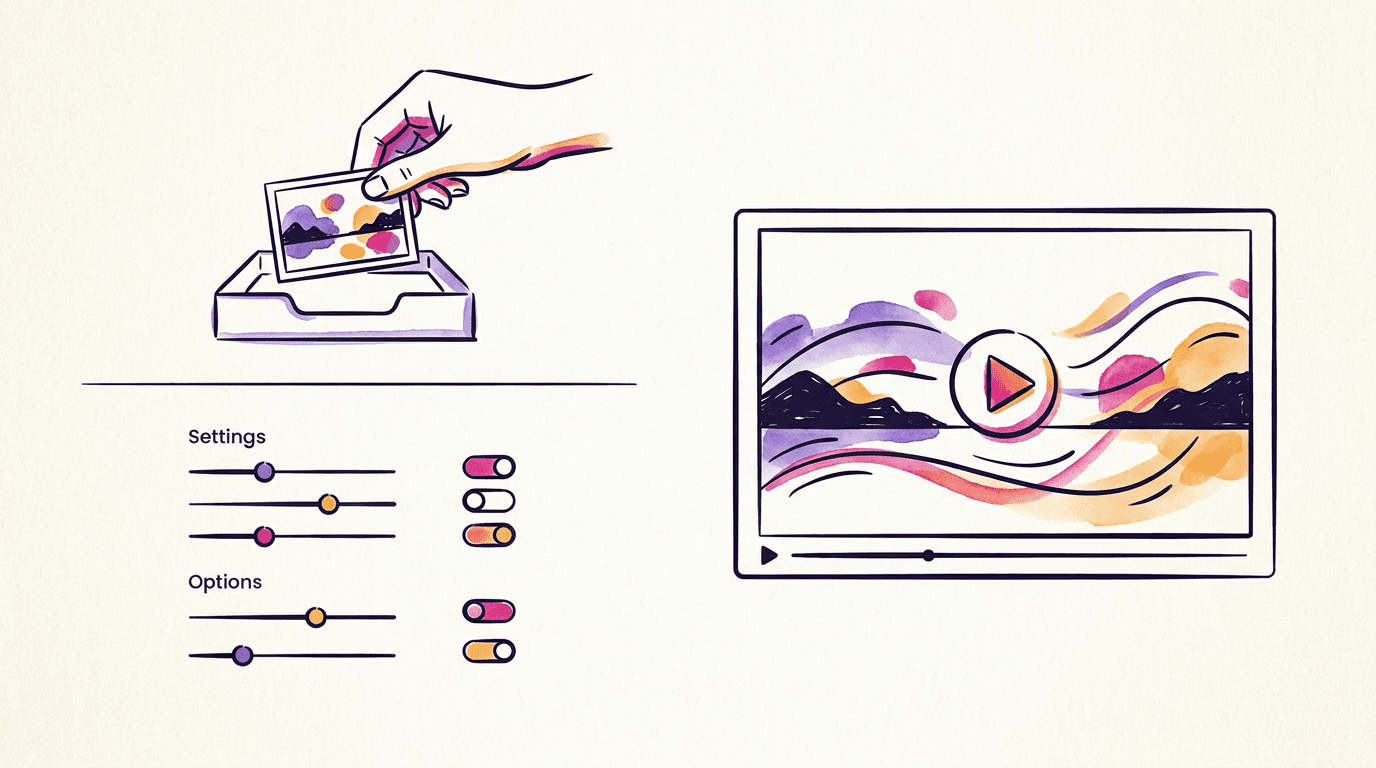
- Paneli video moduna alın ve bir model seçin. İlk deneme için $0.10 fiyatıyla Veo 3.1 Lite, işi öğrenmenin en hesaplı yoludur.
- Fotoğrafınızı ilk kare olarak yükleyin. JPG veya PNG formatındaki görseliniz seçtiğiniz video en boy oranına göre kırpılacaktır, bu nedenle üretime başlamadan önce kenarları kontrol edin.
- 16:9 veya 9:16 oranını seçin. Dikey format TikTok ve Reels için gayet iyi çalışır; model portre kadrajını sorunsuz şekilde işler.
- Hareket komutunu yazın (bir sonraki bölümde değineceğiz). İsteğe bağlı olarak, videoda olmasını istemediğiniz unsurlar için 1000 karaktere kadar bir olumsuz (negative) prompt ekleyebilirsiniz.
- Süreyi ve ses isteyip istemediğinizi seçin. Veo modellerinde her ikisi de tam ayarlardır; Omni Flash'te ise 3 ila 10 saniye arasında herhangi bir uzunluk seçebilir ve ses her zaman açık olur. Wan 3.0 kapatabileceğiniz ücretsiz bir ses kanalıyla 30 saniyeye kadar çıkar, Grok ise 4 ile 15 saniye arası her uzunluğu kabul eder ve her zaman konuşur.
- Videoyu üretin. İşlem yaklaşık 2–5 dakika sürer. Bu sırada sekmeyi kapatabilirsiniz; üretilen videolar 30 gün boyunca geçmişinizde saklanır.
Bakiyenizden harcama sadece işlem başarıyla tamamlandığında düşer. Hatalı denemeler otomatik olarak iade edilir. Video üretiminde deneme yanılma oranı görsellere kıyasla daha yüksek olduğundan bu iade konusu oldukça önemlidir.
Görselden video üretimi için hareket komutları nasıl yazılır?
Birinci kural: Sahneyi değil, hareketi tarif edin. Sahne zaten fotoğrafta mevcut. "Kırmızı paltolu bir kadın köprüde duruyor" ifadesi, modelin zaten gördüğü detayları tekrarlayarak komut alanını boşa harcamaktır. Bunun yerine aynı uzunluktaki "Rüzgarda saçları dalgalanırken kameraya dönüp gülümsüyor, yavaş dolly-in" komutu doğrudan hareket odaklıdır ve mükemmel sonuç verir.
Veo modellerinde kamera terimleri çok büyük iş başarır: Dolly-in, orbit (etrafında dönme), handheld (el kamerası), static tripod shot (sabit tripod çekimi), slow pan left (yavaşça sola kaydırma). Modellerin gerçek çekim açıklamalarıyla eğitildiği çok belli; bu yüzden "dinamik olsun" gibi belirsiz ifadeler yerine sinematografik terimlere çok daha kararlı tepki veriyorlar. Ben olsam "dinamik" kelimesini tamamen kullanmaktan kaçınırdım. Model de dahil olmak üzere hiç kimse bu kelimenin tam olarak ne anlama geldiği konusunda hemfikir değil.
Bu blog için tanıtım klipleri hazırlarken pahalıya mal olan bir tecrübe edindik: Bu modeller, ilk karede halihazırda ne oluyorsa onu sürdürme eğilimindedir ve videonun ilerleyen saniyelerinde başlamasını istediğiniz hareketleri sessizce es geçer. Bir keresinde Omni Flash modelinden "klibin ortalarına doğru" bir pankeki havada ters yüz etmesini istedik ve elimizde on saniye boyunca öylece duran bir pankek videosu kaldı. Üstelik bunu arka arkaya üç kez denedik, yani deneme başına bir dolarımız boşa gitti. Hareketi "halihazırda gerçekleşiyormuş gibi" yeniden yazdığımızda ise ilk denemede başardık. Yani: "Pankeklerin üzerine şurup dökülüyor" komutu, "iki saniye sonra şurup dökülmeye başlasın" komutundan katbekat iyidir. Özellikle görselden video üretirken, istediğiniz hareketin o anda gerçekleşiyor olmasının mantıklı duracağı bir başlangıç fotoğrafı seçin.
İşte her zaman harika sonuç veren birkaç hazır şablon:
- Portreler: "hafif nefes alma, yavaşça göz kırpma ve ardından küçük bir gülümseme; sabit kamera". Bu komut, büyük hareketlerin neden olduğu o tuhaf ve yapay bozulmalar (uncanny valley) olmadan görseli canlandırır.
- Ürünler: "nesnenin etrafında yavaşça 180 derece dönen kamera, stüdyo ışıkları sabit kalıyor". Ürün tanıtımları için en kullanışlı şablondur. Kaynak fotoğrafta arka planın sade olmasına dikkat edin.
- Manzaralar: Hareket eden unsurları doğrudan adlandırın ("bulutlar sağa kayıyor, çimenler dalgalanıyor, ışık daha sıcak bir tona dönüyor"). Aksi takdirde model, varsayılan olarak o sarsıntılı yakınlaştırma efektine dönecektir.
Döngüler, son kareler ve 148 saniyelik videolar
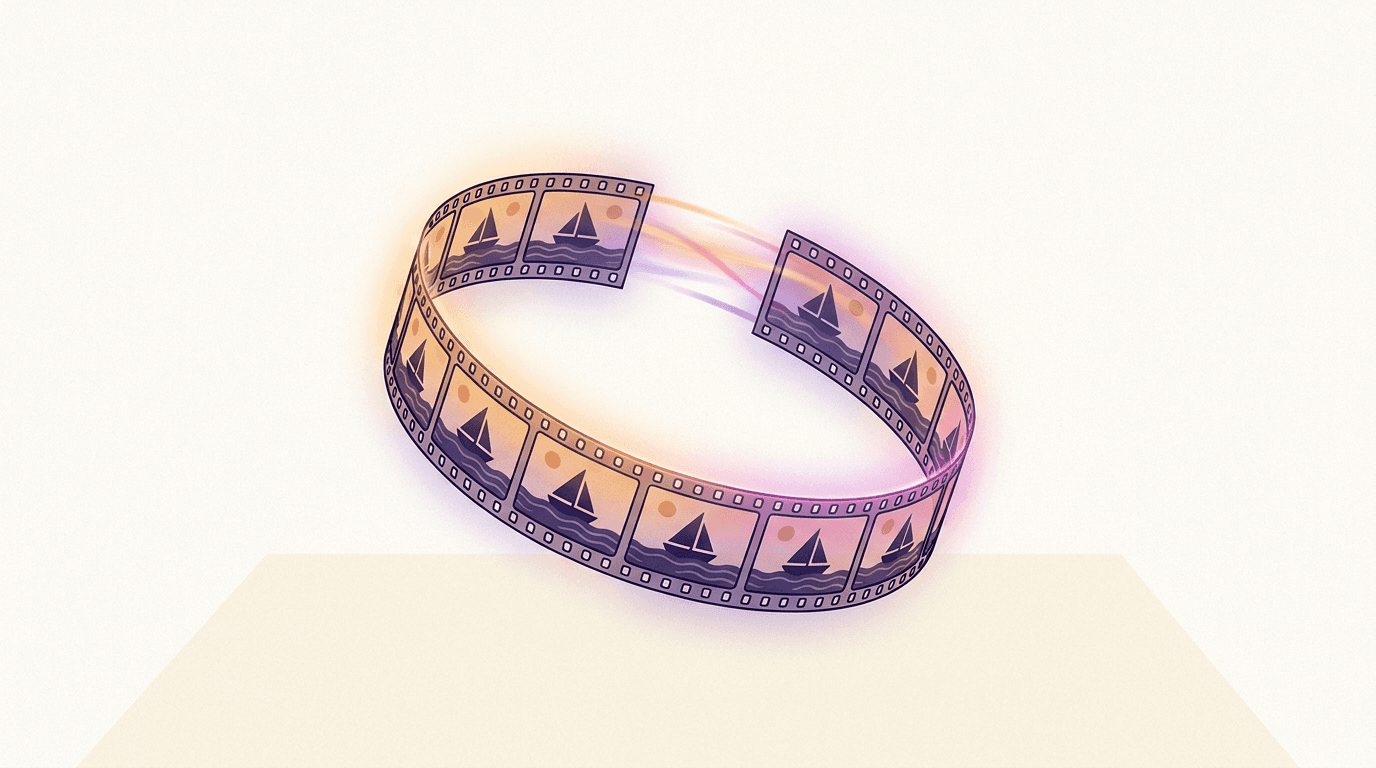
Veo 3.1 modelleri, ilk karenin yanı sıra isteğe bağlı olarak bir son kare de kabul eder; Omni 1.1 ve Wan 3.0 da öyle. Modele iki farklı fotoğraf verdiğinizde, aralarında yumuşak bir geçiş oluşturur. Bu sayede bir gündüz çekimini geceye dönüştürebilir veya kaba bir taslağı bitmiş bir ürüne dönüştürebilirsiniz (morphing). Hem başlangıç hem de son kare için aynı fotoğrafı seçerseniz, başladığı yerde biten pürüzsüz bir döngü (loop) elde edersiniz; bu, web siteleri arka planları veya sinemagraf tarzı paylaşımlar için mükemmeldir. Bu benim platformda en az değer gören ama en sevdiğim özelliktir.
Uzatma (extension) özelliği ise bir diğer Veo marifetidir. Tamamlanmış bir klibe, yeni bir komut ekleyerek 7 saniye daha süre ekleyebilirsiniz. Bu zincirleme uzatma işlemi, görsel bütünlük tamamen korunarak toplamda 148 saniyeye kadar sürdürülebilir (yalnızca Veo 3.1 ve Fast modellerinde geçerlidir; Lite bu özelliğe sahip değildir). Kendi fotoğrafınızla başlayıp böyle uzun bir video zinciri oluşturmak, günümüz API'lerinin sunduğu hikaye tahtasından (storyboard) bağımsız film yapımına en yakın deneyimdir. Tabii ki bu özellik maliyetleri de katlayarak artırır; bu yüzden fikre aşık olmadan önce bütçenizi iyi planlayın. 30 saniye yetiyorsa Wan 3.0 bunu fotoğrafınızdan tek çekimde, ekleme yeri ve süreklilik kayması olmadan üretir: 480p'de $1.50, 720p'de $3.00.
Omni Flash'in artık kendi uzatma özelliği var: her adım son klibe 3 ila 10 saniye ekler ve bu zincir toplamda yaklaşık 40 saniyeye kadar sürdürülebilir — Veo'nun 148 saniyesine kıyasla daha düşük bir tavan. Ayrıca sohbet tabanlı düzenlemeyi de yanında tutar: bitmiş klipte bir değişiklik tarif edersiniz ("akşamüstü yap, diğer her şeyi aynı tut" gibi) ve saniyeleri için tekrar ödeme yaparsınız – ayrıca kendi yüklediğiniz de dahil olmak üzere kendisinin üretmediği videoları da kabul eder ve aynı uzunlukta geri döndürür. Farklı bir felsefe. Düzenleme tek bir anı iyileştirirken; uzatma bir zaman çizelgesini büyütür.
Sıkça Sorulan Sorular
Fotoğrafı ücretsiz olarak videoya dönüştürebilir miyim?
Neredeyse evet. Yeni bir BananaBanana hesabı açtığınızda, kart bilgisi gerekmeden ücretsiz $0.20 bakiye tanımlanır. Bu bakiye, fotoğrafınızdan iki adet sessiz ve 4 saniyelik Veo 3.1 Lite klibi üretmeniz için yeterlidir. Sonrasında ise klip başına $0.10'dan başlayan fiyatlarla ödeme yaparsınız.
Görselden video dönüştürme için en ucuz API seçeneği hangisidir?
BananaBanana üzerinde en ucuz seçenek Veo 3.1 Lite modelidir: 4 saniyelik sessiz 720p bir klip için $0.10, sesli için ise $0.18 ödersiniz. Bu ücret yalnızca başarılı üretimler için alınır; başarısız denemeler için iadeniz otomatik yapılır. Herhangi bir abonelik veya Google Cloud kurulumu da gerekmez.
Üretilen video ses içerebilir mi?
Evet. Veo 3.1 modellerinde isteğe bağlı ses açma seçeneği bulunur (komutunuzda tarif edilen diyaloglar, efektler ve ortam sesleri üretilir). Gemini Omni Flash her zaman ses üretir ve bu, saniye başına fiyatına dahildir (360p'de $0.03, 4K'da $0.30); Wan 3.0 ses kanalını ücretsiz ekler, Grok Imagine Video 1.5 ise yazdığınız diyaloğu seslendirir.
TikTok veya Reels için dikey bir fotoğrafı canlandırabilir miyim?
Evet, yedi modelin tümü 9:16 formatını destekler; Grok Imagine Video 1.5 buna 1:1, 3:2 ve 2:3'ü de ekler. Fotoğrafı yükleyin, 9:16 oranını seçin. Kaynak fotoğrafın bu orana göre kırpılacağını unutmayın, bu yüzden orijinal çekimin üst kısmında biraz boşluk bırakmaya dikkat edin.
Fotoğraftan üretilen bir yapay zeka videosu en fazla ne kadar uzunlukta olabilir?
Tek bir klip Veo modellerinde 4–8 saniye, Omni Flash'te 3–10 saniye, Grok'ta 4–15 saniye, Wan 3.0'da ise tek çekimde 30 saniyeye kadardır. Ayrıca Veo 3.1 ve Veo 3.1 Fast ile üretilen klipleri, orijinal fotoğrafınızın görsel bütünlüğünü koruyarak 7'şer saniyelik adımlarla toplamda 148 saniyeye kadar uzatabilirsiniz; Omni 1.1 ise yaklaşık 40 saniyeye kadar uzar.