Cursor'da Görsel Üretme: MCP Sunucu Kurulum Kılavuzu
Cursor'ı uzak bir MCP sunucusuna bağlayın ve görselleri doğrudan deponuzda üretin: mcp.json ayarları, env-var sırları ve $0.03'tan başlayan fiyatlar.

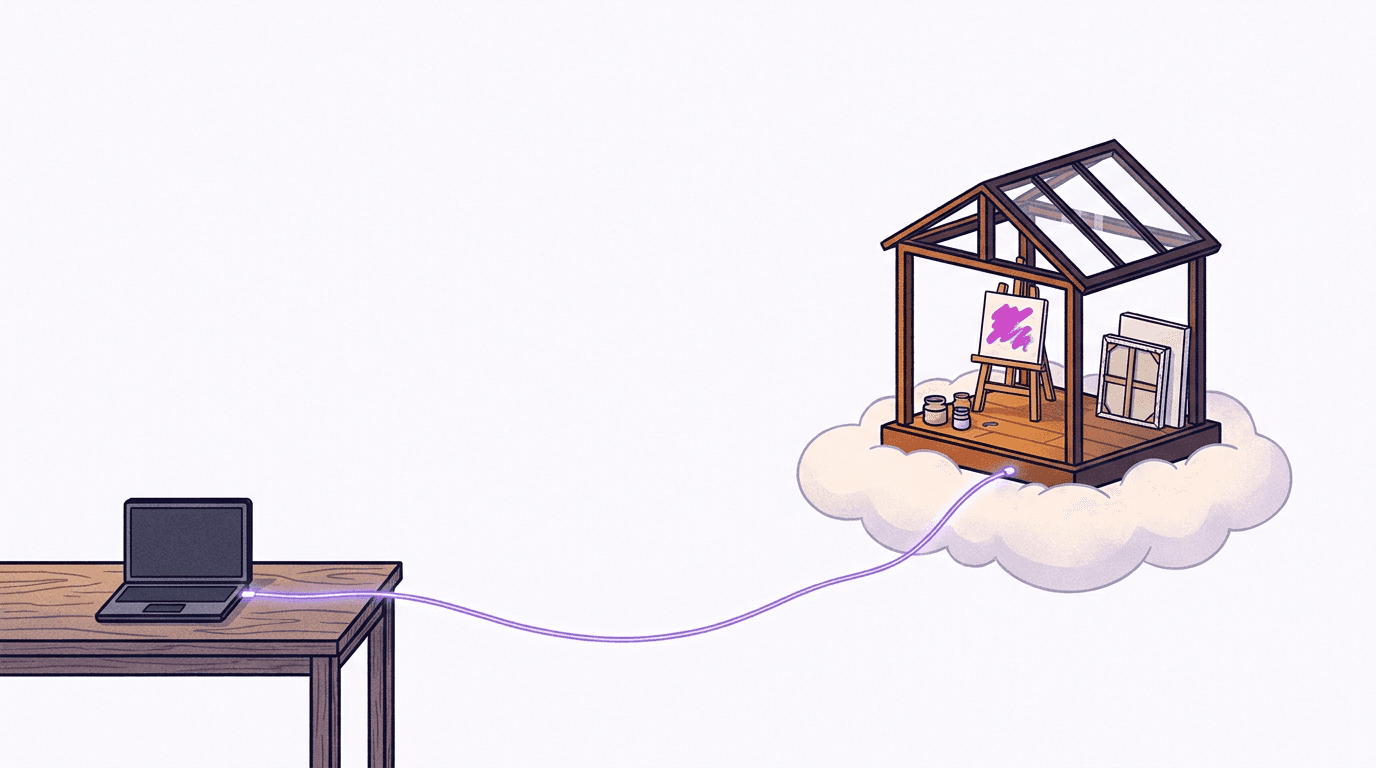
Cursor için bir MCP sunucusu, editörün yapay zekâ asistanının (agent) sohbet içinden çağırabileceği harici bir araç kutusudur: mcp.json dosyasına tek bir JSON bloğu eklersiniz ve Cursor, temel modellerinin sahip olmadığı görsel üretme gibi yetenekler kazanır. Cursor asistanı gün boyu dosyaları düzenler ve terminal komutları çalıştırır, ancak arkasındaki modellerin hiçbiri kendi başına bir görsel dosyası oluşturamaz. Sisteme bir görsel üretim sunucusu bağladığınızda, "bu açılış sayfası (landing page) için bana 16:9 oranında bir kahraman (hero) görseli yap" talebi, deponuzda gerçek bir dosya ile sonuçlanan sıradan bir sohbet talimatına dönüşür.
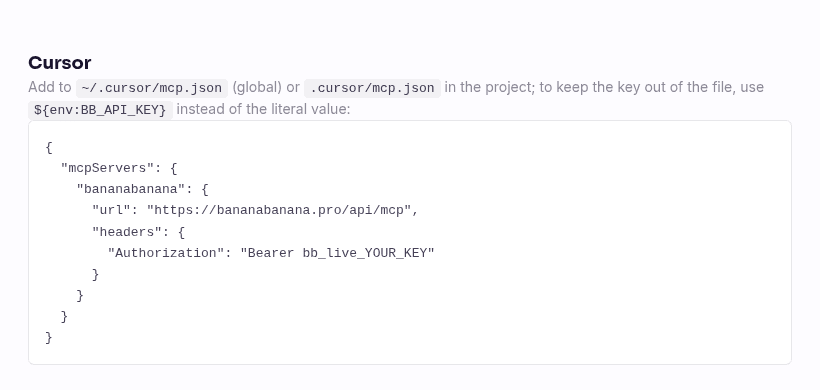
Yalnızca kurulum için buradaysanız, işte tüm adımlar. BananaBanana profilinizde bir API anahtarı oluşturun, ardından bunu ~/.cursor/mcp.json (genel) veya projedeki .cursor/mcp.json dosyasına ekleyin:
{
  "mcpServers": {
    "bananabanana": {
      "url": "https://bananabanana.pro/api/mcp",
      "headers": {
        "Authorization": "Bearer ${env:BB_API_KEY}"
      }
    }
  }
}
Ortamınızda BB_API_KEY=bb_live_YOUR_KEY değişkenini dışa aktarın (export edin) ve işlem tamam. Yerel sunucu süreci yok, Google Cloud hesabı yok, abonelik yok. Görseller ön ödemeli bakiyenizden görsel başına $0.03'tan, videolar ise $0.10'dan başlayan fiyatlarla ücretlendirilir. Bu kılavuzdaki her iki demo görseli de ben bu metni yazarken aktif bir anahtarla tam olarak bu yapılandırma kullanılarak üretildi; işlem izleri (traces) ve $0.55 tutarındaki medya faturası aşağıda yer alıyor.
Neden Cursor'a bir görsel üreteci entegre etmelisiniz?
Çünkü arayüz (frontend) geliştirme yaparken tam da kodun ortasındayken görsellere ihtiyaç duyarsınız. Açılış sayfası için bir kahraman görseli. Izgaranın (grid) gri kutularla yayına girmemesi için ürün kartı yer tutucuları (placeholders). Yeni hazırladığınız blog yazısı için bir OG görseli. Bunların hiçbiri zor işler değil, ancak her biri eskiden aynı dolambaçlı yolu izlemek anlamına geliyordu: tarayıcı sekmesinde bir görsel üreteci aç, bir istem (prompt) yaz, indir, adını değiştir, public/ klasörüne sürükle, geri dön ve <img> etiketini yaz. Varlık (asset) başına on dakikalık bu angarya iş, bileşendeki (component) odağınızı tamamen kaybettirir.
Bir MCP sunucusuyla ise asistan tüm bu döngüyü kendi yönetir. İstemi yazar (genellikle benim tembelce yazdığım ilk taslağımdan daha iyidir), generate_image fonksiyonunu çağırır, sonucu doğru klasöre indirir ve alt metni (alt text) içeren işaretlemeyi yazar. Siz de angaryayla uğraşmak yerine sadece değişiklik farkını (diff) incelersiniz.
Bu yöntemin diğer bir avantajı ise bilgisayarınıza hiçbir şey yüklemek zorunda kalmamanızdır. Görsel üretimi için yerel MCP sunucuları mevcuttur ve çalışırlar, ancak bunlar kendi Node veya Python sürecinizi çalıştırmanızı ve kendi Google API anahtarınızı tanımlamanızı gerektirir; bu da Google hesabınızda kotalar ve faturalandırmalarla uğraşmak demektir. Uzak bir sunucu ise tüm bunları ortadan kaldırır: uç nokta (endpoint) zaten bizim tarafımızda, BananaBanana generator ile aynı hat üzerinde çalışır ve tek kimlik bilginiz tek bir bb_live_ anahtarıdır.
Cursor'a bir MCP sunucusu nasıl eklenir?
Üç adım, yaklaşık iki dakika. Aşağıdaki yapılandırma ayrıntıları, 11 Temmuz 2026 itibarıyla resmî Cursor MCP belgeleriyle doğrulanmıştır.
İlk olarak, kaydolun ve Profil → MCP API Anahtarları (Profile → MCP API Keys) bölümünü açın. Bir anahtar oluşturun. Bu anahtar yalnızca bir kez gösterilir, bb_live_ ile başlar ve bizim tarafımızda şifrelenmiş (hashed) olarak saklanır, bu yüzden hemen kopyalayın. Yeni hesaplar, en ucuz modelde altı test görseli için yeterli olan $0.20 bakiye ile başlar.
İkinci olarak, yapılandırmanın nerede duracağını seçin. Cursor iki konumu okur:
~/.cursor/mcp.json— genel (global), sunucu sizi her projede takip eder;- Depo kök dizinindeki
.cursor/mcp.json— proje kapsamlı (project-scoped) ve anahtarı içinden uzak tuttuğunuz sürece taahhüt etmek (commit) güvenlidir.
Bu "güvenli" olma durumu, yukarıdaki kod parçacığındaki ${env:BB_API_KEY} değişken yerleştirmesi (interpolation) sayesinde sağlanır: Cursor, yükleme sırasında ortam değişkenlerini mcp.json değerleriyle değiştirir, böylece dosyanın kendisi hiçbir gizli anahtar içermez. Belgelerde belirtildiği gibi, aynı sözdizimi ${workspaceFolder} ve diğer birkaç değişkeni de destekler.
Üçüncü olarak, Cursor'ı yeniden başlatın veya yeniden yükleyin ve Cursor Ayarları (Cursor Settings) → MCP bölümünü açın. Sunucu, yeşil bir göstergeyle ve list_models ile başlayıp list_generations ile biten on araçlık bir listeyle görünmelidir. MCP sunucusu sayfamızda aynı kod parçacığının yanı sıra doğruladığımız diğer tüm istemciler için bir uyumluluk tablosu yer almaktadır:
Sunucu görünmüyorsa, doğrudan "bilinmesi gereken ince noktalar" (quirks) bölümüne atlayın. Neden neredeyse her zaman yapılandırma değil, ortam değişkenidir.
Kullanım senaryosu: Sohbetten ayrılmadan açılış sayfası kahraman görseli ve ürün çekimleri
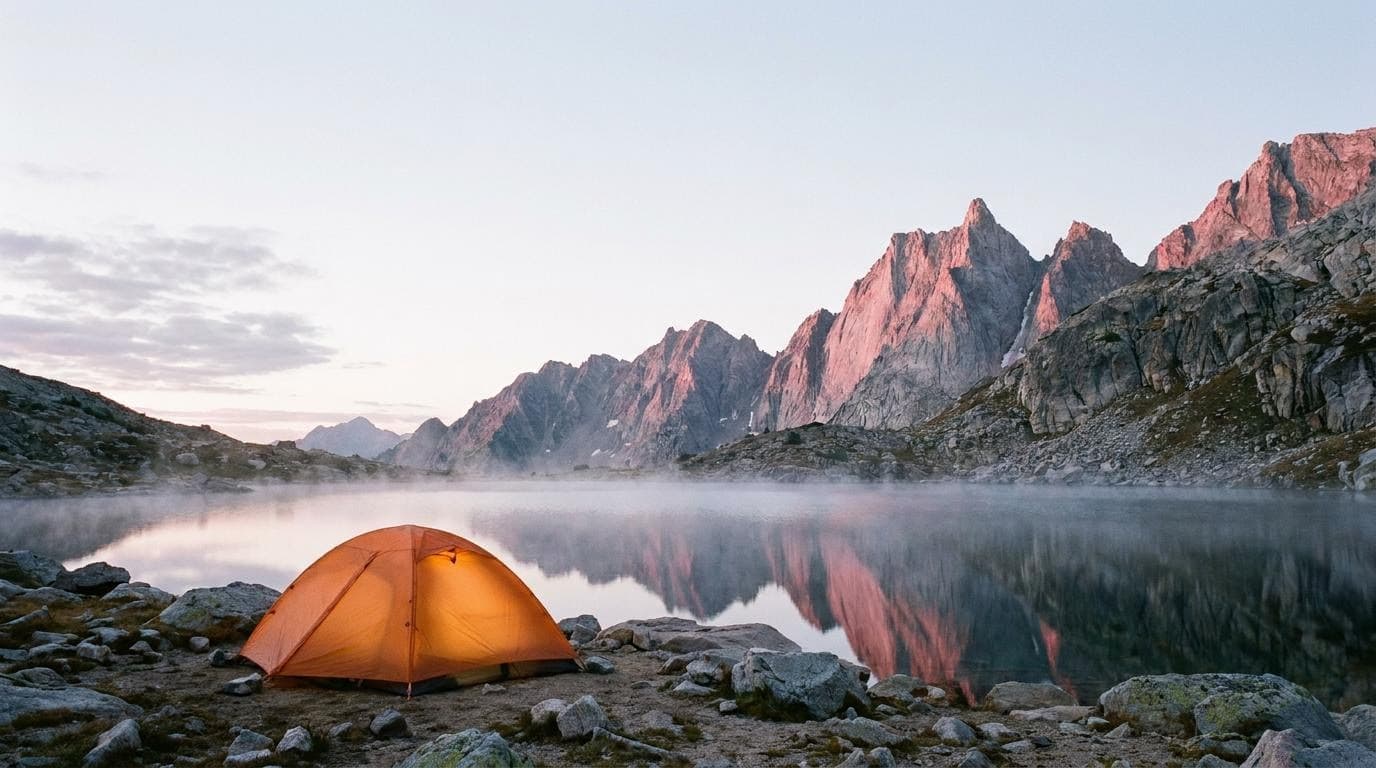
Bu makalenin etrafında kurulduğu senaryo şu şekildedir: Açık hava ekipmanları markası için açılış sayfası hazırlayan bir ön uç (frontend) geliştiricisiniz ve tasarımda tam genişlikte şafak vakti kamp temalı bir kahraman (hero) görseli gerekiyor. Cursor sohbetinde bunu istersiniz, asistan fotoğrafçılık tarzında bir istem hazırlar ve aracı çağırır. İşte gerçek iş kimliği (job id) de dahil olmak üzere oturumumdan alınan gerçek işlem izi:
→ generate_image {"prompt": "A photorealistic wide hero shot for an outdoor
   gear brand landing page: a lone orange tent glowing softly on the shore of
   a still alpine lake at dawn, mist over the water, sharp granite peaks
   catching the first pink light, generous empty sky for headline text, low
   angle, 35mm lens, no text", "model": "nano-banana-pro", "aspect_ratio": "16:9"}
← {"job_id": "cmrgox3xj000s…", "status": "processing",
   "cost_charged_usd": 0.11, "balance_remaining_usd": 1554.40}
→ get_result {"job_id": "cmrgox3xj000s…"}
← {"status": "completed", "files": [{"url": "https://bananabanana.pro/api/files/…"}]}
Çağrıdan tamamlanmış dosyaya kadar on sekiz saniye. İşte tam olarak o çıktı, ilk deneme, yeniden oluşturma yok:
Asistan daha sonra dosyayı imzalı URL'den public/ klasörüne çeker ve bileşeni yazar. Bağlantılar 24 saat boyunca geçerli kalır; bundan sonra yapılacak yeni bir get_result çağrısı bağlantıları yeniden oluşturur.
Ürün yer tutucuları da daha kare bir formatla aynı yöntemi izler. Kart ızgarası için bir fotoğrafçıya brif verir gibi bir su şişesi çekimi istedim: konu, yüzey, ışık, lens. Tek bir çağrı, $0.11, yirmi saniye:
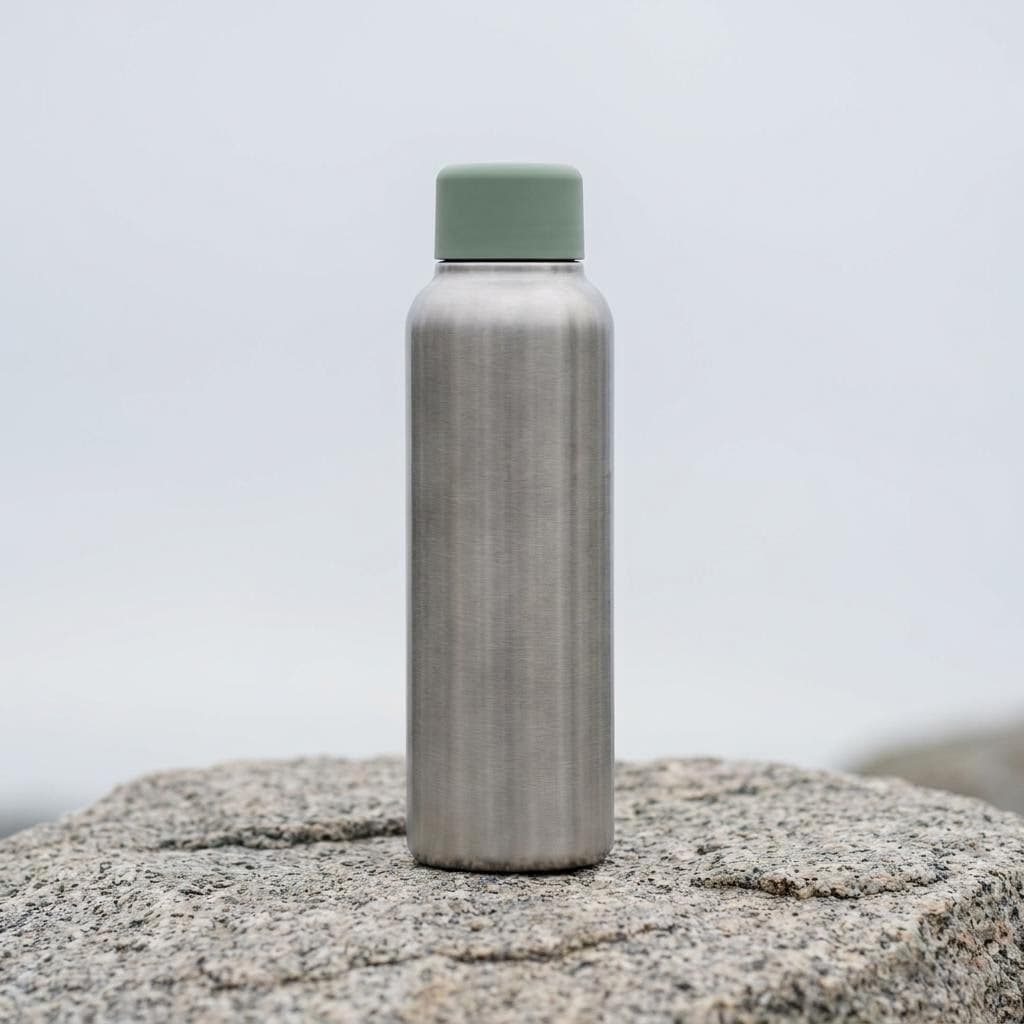
Her iki demo da bu sayfada yayınlandıkları için Nano Banana Pro ile çalıştırıldı. Tek kullanımlık ızgara doldurucuları için dürüst olmak gerekirse $0.03 fiyatındaki nano-banana-2-lite modelini kullanır ve yalnızca tasarım incelemesinden geçen görselleri yükseltirdim; Lite kılavuzumuz ucuz modelin nerede yeterli olduğunu açıklıyor. Ve eğer bir dizi görselde aynı maskota ihtiyacınız varsa, istem tekniği istemciden daha önemlidir, bu nedenle karakter tutarlılığı saha kılavuzumuza göz atın.
Videolar da aynı sohbet üzerinden çalışır. generate_video ilk çağrıda asla ücret almaz: bir teklif döndürür ve asistanın tam tutarı onaylayan confirm_cost ile çağrıyı tekrarlaması gerekir. Sessiz bir 720p Veo 3.1 Lite klibi $0.10'dan başlar; sesli Omni Flash çözünürlüğe bağlı olarak saniye başına $0.03–$0.30 arası ücretlendirilir, yani 720p'de üç saniyelik bir çekim için $0.30.
Canlıya geçmeden önce bilinmesi gereken Cursor pürüzleri
Her istemcinin kendine göre keskin köşeleri vardır. Yukarıdaki kurulumu test ederken topladığım ve bir ekip arkadaşımı gerçekten uyaracağım pürüzler şunlardır.

1. ${env:…} yalnızca Cursor bu değişkeni görebiliyorsa çalışır. .zshrc dosyanızdaki bir dışa aktarma (export) işlemi, Cursor'ı terminalden başlattığınızda görünür olur; ancak Dock'tan veya masaüstü kısayolundan başlatılan bir GUI uygulaması kabuk profilinizi (shell profile) okumaz, bu nedenle aynı yapılandırma orada sessizce başarısız olur. Deneyimlerime göre, bu durum macOS'ta "sunucu bağlanamıyor" sorununun bir numaralı nedenidir. Çözümler: Değişkeni işletim sistemi düzeyinde ayarlayın (macOS'ta launchctl setenv veya Windows'ta sistem ortam değişkenleri ile) ya da yapılandırmanın sorunsuz çalıştığını doğrulamak için Cursor'ı bir kez terminalden başlatın.
2. Proje yapılandırması bir ekip özelliğidir, kişi başına bir anahtar düşer. .cursor/mcp.json dosyasını ${env:BB_API_KEY} yer tutucusuyla taahhüt edin (commit edin); böylece her ekip arkadaşı projeyi klonladığı an, her biri kendi anahtarı üzerinden sunucuya erişebilir. Bu ayrım göründüğünden daha önemlidir: Anahtarlar ücretsizdir ve her biri Profil → MCP API Anahtarları (Profile → MCP API Keys) bölümünde kendi kullanım günlüğüne (araç, model, maliyet, istem önizlemesi) ve isteğe bağlı günlük USD limitine sahip olur. Birisi ayrıldığında, yalnızca onun anahtarını iptal edersiniz ve diğer kimse durumdan etkilenmez. Cursor'ın kurumsal (business) planları, MCP sunucularını ekip panelinden de dağıtabilir, ancak taahhüt edilmiş dosya herhangi bir planda sorunsuzca çalışır.
3. Cursor her araç çağrısından önce onay ister ve muhtemelen bunu açık bırakmalısınız. Varsayılan olarak her MCP çağrısı, araç adının yanındaki küçük bir okun altında görünen argümanlarla onayınızı bekler. Otomatik çalıştırma (auto-run) modlarında, beyaz listedeki (allowlisted) araçlar anında yürütülür. Toplu bir işlem sırasında yirmi kez onayla düğmesine tıklamak sıkıcı olabilir, biliyorum; ancak çağrı başına gerçek para harcayan araçlar için onayı açık tutmanızı ve yalnızca ücretsiz olanların (list_models, get_result) otomatik çalışmasına izin vermenizi öneririm. Videolar için bizim tarafımızda zaten ikinci bir güvenlik kemeri mevcuttur: confirm_cost olmadan teklif aşamasının üzerindeki hiçbir işlem ücretlendirilmez.
4. Üretilen görseli doğrudan sohbetin içinde görürsünüz. Cursor belgelerine göre, MCP araçları tarafından döndürülen görseller sohbete eklenir ve görme yeteneğine (vision) sahip modeller bunları analiz eder. get_result fonksiyonumuz, URL'nin yanında küçük bir webp önizlemesi içerir; böylece asistan (ve siz) tarayıcıyı açmadan sonucu değerlendirebilirsiniz. Bu aynı zamanda asistanın kendi kendini düzeltmesini de sağlar: Görseli kontrol etmesini ve örneğin çadır başlık alanının ortasında kalmışsa yeniden üretmesini (reroll) isteyebilirsiniz.
5. Tek tıkla kurulum bağlantıları mevcuttur, ancak anahtarlarınızı buralara eklemeyin. Cursor, kurulum bağlantıları belgelerinde belirtildiği gibi, base64 ile kodlanmış bir yapılandırmadan bir MCP sunucusu kuran cursor:// derin bağlantılarını (deeplink) destekler. Açık sunucular için kullanışlıdır; ancak kimlik doğrulamalı sunucular için yanlıştır, çünkü kodlanmış yapılandırma doğrudan anahtarınızı taşır ve bağlantıyı ele geçiren herkes bakiyenizi kullanabilir. Bu yüzden sitemizdeki düğme, bir Add-to-Cursor derin bağlantısı yerine ortam değişkeni yer tutucusu içeren bir kopyala-yapıştır kod parçacığıdır. Yapıştırın, değişkeni dışa aktarın ve tamamlayın.
Ürün tarafından bilinmesi faydalı bir nokta: MCP generate_image aracı artık girdi görsellerini de kabul ediyor (iş kimliği, URL veya data URI), bu nedenle referans tabanlı üretim de MCP üzerinden çalışır. generate_video da aynı şekilde bir ilk kare kabul eder, dolayısıyla görselden videoya dönüştürme için de artık web generator sayfasına ihtiyaç yoktur.
Bu makalenin demo medyası ne kadara mal oldu?
Standart üretim başına fiyatlar, list_models fonksiyonunun asistana bildirdiği rakamlarla aynıdır, personel indirimi yoktur:
| Görsel | Model | Fiyat |
|---|---|---|
| MCP üzerinden aktif anahtarla açılış sayfası kahraman görseli demosu | Nano Banana Pro, 1K | $0.11 |
| MCP üzerinden ürün yer tutucu demosu | Nano Banana Pro, 1K | $0.11 |
| Kapak + 2 editoryal illüstrasyon | Nano Banana Pro, 1K | $0.33 |
| Belgeler sayfası ekran görüntüsü | tarayıcı, üretim değil | $0.00 |
| Toplam | $0.55 |
Bu sefer her üretim ilk denemede başarıyla sonuçlandı, ancak bu durum her zaman böyle olmayabilir; ürün çekimlerinde bir veya iki yeniden oluşturma bütçesi ayırın ve yayına almadan önce yakınlaştırıp inceleyin, çünkü nesne geometrisi hâlâ fotogerçekçi modellerin en sık hata yaptığı yerdir.
Bu sunucuyu zaten Claude'da çalıştırıyorsanız, yukarıdaki Cursor yapılandırması tek yeni kısımdır: aynı anahtar, aynı bakiye, aynı geçmiş. Sıfırdan başlıyorsanız, Claude Code rehberi hemen hemen birebir Cursor için de geçerli olan dört kullanım senaryosunu daha kapsıyor. Denemeye hazır mısınız? Bir anahtar oluşturun ve Cursor'dan ilk kahraman görselinizi isteyin.
SSS
Cursor, Authorization üstbilgisi (header) içeren uzak MCP sunucularını destekler mi?
Evet, yerel olarak (natively) destekler. Cursor, Streamable HTTP taşımasını eklediğinden beri, uzak bir sunucu sadece mcp.json dosyasındaki bir url ve isteğe bağlı bir headers nesnesidir; yerel köprü sürecine gerek yoktur ve ${env:VAR} yerleştirmesi sırrı dosyanın dışında tutar. Bu rehberde kullanılan ve 11 Temmuz 2026'da resmî Cursor MCP belgelerine göre doğrulanan yapılandırma budur. Cursor ayrıca uzak sunucular için OAuth'u da destekler; uç noktamız artık hem Bearer anahtarlarıyla hem de OAuth 2.1 ile kimlik doğrulaması yapmaktadır.
Cursor'da görsel üretmek için bir Google API anahtarına ihtiyacım var mı?
Hayır. Yerel olarak çalışan görsel MCP sunucuları doğrudan Gemini API'sini çağırır, bu nedenle kendi kotalarınız ve faturalandırmanızla kendi Google anahtarınıza ihtiyaç duyarlar. Uzak sunucuda ise üretim, BananaBanana'nın kendi yönetilen API anahtar havuzunda gerçekleşir ve tek kimlik bilginiz profilinizdeki bb_live_ anahtarıdır. Google'ın ham API'sine doğrudan erişimi; minimum harcama sınırı olmayan görsel başına fiyatlar, tek bir ön ödemeli bakiye ve tek tıkla iptal edebileceğiniz bir anahtar ile takas etmiş olursunuz.
MCP yapılandırması genel mi yoksa proje başına mı olmalıdır?
Her iki yöntem de çalışır; aradaki fark kapsam ve paylaşımdır. ~/.cursor/mcp.json sizi her depoda takip eder ve bu kişisel bir kurulum için uygundur. Proje kök dizinindeki .cursor/mcp.json ise depoyla birlikte hareket eder, böylece projeyi klonlayan tüm ekip sunucuya sahip olur; anahtarı bir ${env:…} referansı olarak tuttuğunuzda dosya güvenle kaydedilebilir. Benim tercihim, bir ekibin dokunduğu her şey için proje düzeyindedir; çünkü kaydedilen bir yapılandırma ve geliştirici başına anahtarlar, size kişi başına kullanım günlükleri ve yetki iptali sağlar.
Cursor aynı sunucu üzerinden video üretebilir mi?
Evet, bir maliyet onay adımıyla birlikte. generate_video aracı her zaman önce bir teklif döndürür ve herhangi bir ücret alınmadan önce asistanın tam tutarla eşleşen confirm_cost ile çağrıyı tekrarlaması gerekir. Fiyatlar, 4 saniyelik sessiz 720p Veo 3.1 Lite klibi için $0.10'dan, sesli en üst seviye Veo 3.1 işlemesi için $4.40'a kadar değişir ve sesli Omni Flash ise çözünürlüğe bağlı olarak saniye başına $0.03–$0.30 (klip başına $0.09–$3.00) olarak ücretlendirilir. Klipler bir ila on dakika sürer, bu nedenle asistan siz kodunuz üzerinde çalışmaya devam ederken get_result fonksiyonunu sorgular (poll eder).
mcp.json dosyasını düzenledikten sonra sunucum neden Cursor'da görünmüyor?
Olasılık sırasına göre üç yaygın şüpheli şunlardır: Ortam değişkeni Cursor süreci tarafından görülemiyor: GUI ile başlatılan uygulamalar kabuk profilinizi okumaz, bu nedenle değişkeni işletim sistemi düzeyinde ayarlayın veya Cursor'ı bir terminalden başlatın. Yapılandırma yeniden yüklenmedi: Cursor'ı tamamen yeniden başlatın veya MCP ayarlarındaki yenileme kontrolünü kullanın. Ya da JSON yapısı küçük bir hata içeriyor olabilir; sondaki fazladan virgül bunun klasik bir örneğidir. Sunucu görünüyor ancak araç çağrıları 401 hatasıyla başarısız oluyorsa, anahtarın kendisi yanlıştır veya iptal edilmiştir; MCP sunucusu sayfasındaki kod parçacığından doğrudan bir istek göndererek anahtarı test edin.